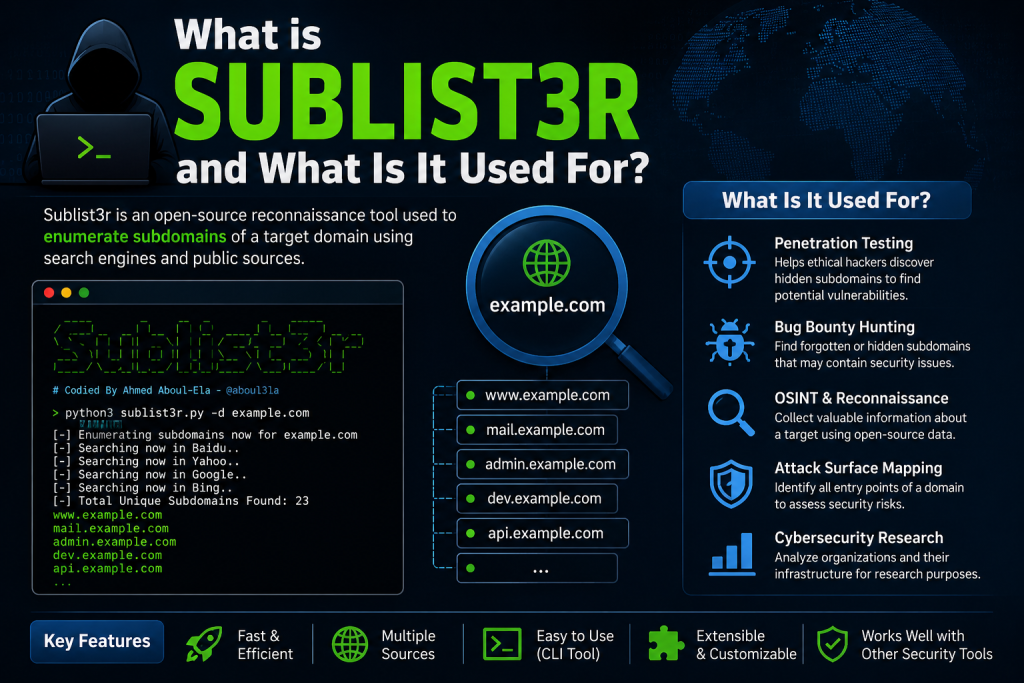
Sublist3r is one of the most popular subdomain enumeration tools used by cybersecurity professionals, penetration testers, bug bounty hunters, and security researchers. It helps users discover subdomains associated with a target domain, making it a valuable asset during reconnaissance and information-gathering phases.
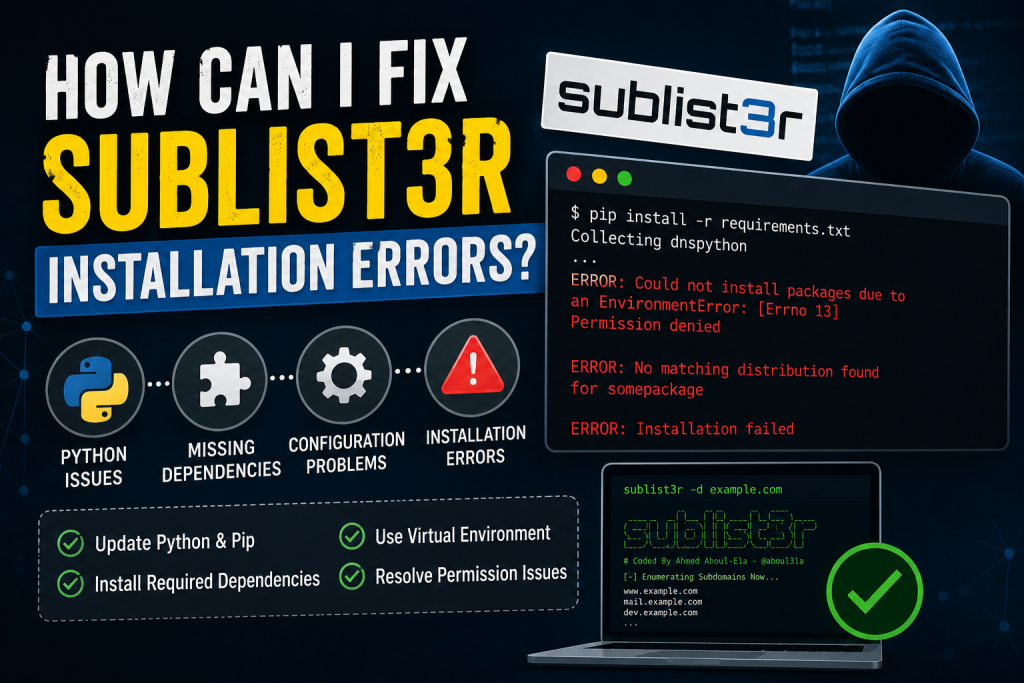
However, many users encounter installation issues when setting up Sublist3r, especially on newer operating systems, Python environments, or virtual machines. If you’re struggling with Sublist3r installation errors, don’t worry. This guide will walk you through the most common problems and their solutions.
Read More: Why Is Sublist3r Not Showing Any Subdomains?
What Causes Sublist3r Installation Errors?
Sublist3r was originally built for Python 2.x and later updated to support Python 3. However, dependency conflicts, outdated packages, incorrect Python versions, and missing system libraries can still cause installation failures.
Some common reasons include:
- Incompatible Python version
- Missing required dependencies
- Outdated pip package manager
- Permission-related installation issues
- Virtual environment conflicts
- Deprecated Python libraries
Understanding the root cause can help you resolve the issue much faster.
Verify Your Python Version
Before installing Sublist3r, check which Python version is currently installed on your system.
Run:
python --versionOr:
python3 --versionSublist3r works best with Python 3.x versions. If you’re using an outdated Python release, upgrade to a supported version before proceeding.
Update Pip and Essential Tools
An outdated package manager is often responsible for installation failures.
Upgrade pip, setuptools, and wheel:
python3 -m pip install --upgrade pip setuptools wheelAfter updating these tools, attempt the installation again.
Clone the Latest Sublist3r Repository
Instead of downloading old archived versions, clone the latest source code directly.
git clone https://github.com/aboul3la/Sublist3r.gitNavigate into the project directory:
cd Sublist3rThis ensures you’re using the most recent available codebase.
Install Required Dependencies
Most installation errors occur because dependencies are missing or incompatible.
Install the required packages using:
pip3 install -r requirements.txtIf you encounter errors related to specific packages, install them individually.
Example:
pip3 install requests
pip3 install dnspython
pip3 install argparse
Installing dependencies one by one can help identify the problematic package.
Fix “No Module Named” Errors
One of the most common issues users face is:
ModuleNotFoundError: No module named 'requests'or
ModuleNotFoundError: No module named 'dns'To fix this, install the missing module manually.
For example:
pip3 install requestsor
pip3 install dnspythonAfter installation, rerun Sublist3r.
Resolve Permission Denied Errors
Linux and macOS users sometimes receive permission-related errors during installation.
Example:
Permission deniedYou can either use sudo:
sudo pip3 install -r requirements.txtOr create a virtual environment, which is generally safer.
python3 -m venv sublist3r-env
source sublist3r-env/bin/activate
pip install -r requirements.txt
Using a virtual environment prevents conflicts with system-wide packages.
Fix SSL Certificate Errors
Some users encounter SSL verification errors while downloading packages.
Example:
SSL: CERTIFICATE_VERIFY_FAILEDUpdate your certificates:
Ubuntu/Debian
sudo apt update
sudo apt install ca-certificates
macOS
/Applications/Python*/Install\ Certificates.commandAfter updating certificates, try installing the packages again.
Fix Git Installation Problems
If Git is not installed, cloning the repository will fail.
Ubuntu/Debian
sudo apt install gitCentOS
sudo yum install gitmacOS
brew install gitVerify installation:
git --versionUse a Virtual Environment for Cleaner Installation
A virtual environment helps isolate dependencies and avoids conflicts with existing Python packages.
Create one using:
python3 -m venv sublist3r-envActivate it:
Linux/macOS
source sublist3r-env/bin/activateWindows
sublist3r-env\Scripts\activateInstall dependencies:
pip install -r requirements.txtThis method solves many package conflict issues.
Fix Outdated Dependency Errors
Sometimes a package version specified in the requirements file is no longer available.
Update dependencies manually:
pip install --upgrade requests
pip install --upgrade dnspython
Then rerun the tool.
You can also inspect dependency conflicts using:
pip checkRunning Sublist3r Successfully
Once installation completes, execute:
python3 sublist3r.py -d example.comReplace “example.com” with your target domain.
If Sublist3r starts scanning without displaying errors, the installation has been completed successfully.
Best Practices to Avoid Future Installation Issues
To minimize installation problems:
- Keep Python updated.
- Regularly upgrade pip and packages.
- Use virtual environments.
- Clone the latest repository version.
- Avoid mixing Python 2 and Python 3 packages.
- Check dependency compatibility before upgrading.
Following these practices can save time and reduce troubleshooting efforts.
Conclusion
Sublist3r remains a useful reconnaissance tool for discovering subdomains, but installation issues can arise due to outdated dependencies, Python version mismatches, or environment conflicts. Fortunately, most errors can be fixed by updating Python, installing missing packages, upgrading pip, or using a virtual environment.
By following the troubleshooting steps outlined above, you should be able to install and run Sublist3r successfully on Windows, Linux, or macOS. Whether you’re a penetration tester, bug bounty hunter, or cybersecurity enthusiast, resolving these installation issues will get you back to efficient subdomain enumeration in no time.